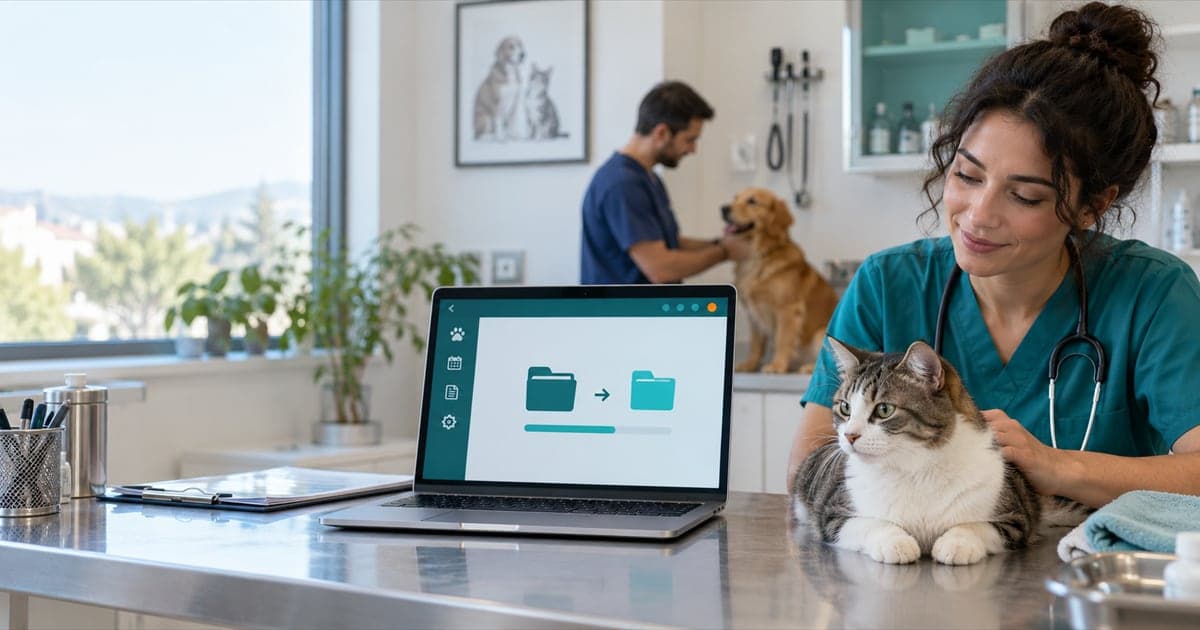
For clinics switching from another program
Switching veterinary software: your clinic keeps running while your data moves
Switching veterinary software does not mean leaving your records behind. VetBis takes the owner and patient records you export from your current program with the data import wizard: it maps columns, shows a preview and validates rows. The old system stays in place until you decide; imported records arrive in the patient management screens.
Drag: the old setup and the VetBis patient list. Sample data.
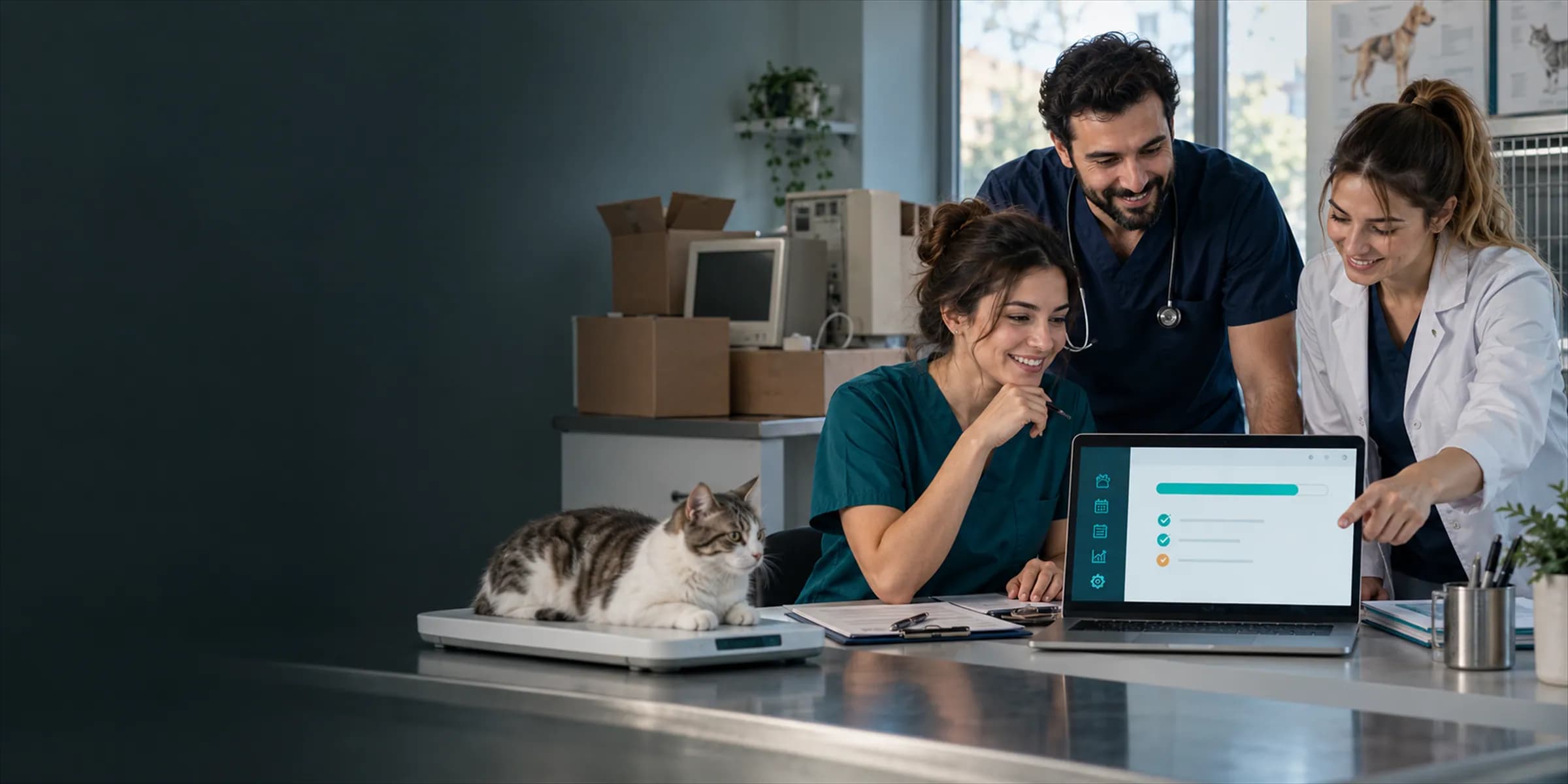
The migration plan: four stops
From preparation to the first day, you check each stop before moving to the next. Open the checklist stop by stop.
- Stop 1
Preparation
Export from the old program and prepare the file.
- Stop 2
Setup call
We review your file together with the support team.
- Stop 3
Data transfer
Mapping, preview, validation and import.
- Stop 4
First day
The team starts working in VetBis.
Live flowFirst day 4 / 4
Steps
- 1PreparationExport from the old program and prepare the file.
- 2Setup callWe review your file together with the support team.
- 3Data transferMapping, preview, validation and import.
- 4First dayThe team starts working in VetBis.
Data transfer stop: the validation screen
- File
- Mapping
- Validation
- Import
| 1 | Ayşe Örnek | |
| 2 | Mehmet Deneme | |
| 3 | Zeynep Kurgu | Phone is missing |
119 rows ready, 1 row with errors
The sample file and rows are fictional.
Stop checklist
- Export the owner and patient list as Excel or CSV.
- Keep a backup of the file in a separate place.
- Decide which history (vaccines, stock, balances) you want moved.
- Tell us which program you are leaving; we check the preparation list together.
- We agree the scope, an estimated plan and any fee in writing before starting.
- Open your 7-day trial account; you try the import without touching real data.
- The wizard maps your file's columns to VetBis fields.
- Before importing you preview the rows and see faulty rows in the error table.
- An interrupted import continues where it stopped; compare a few random patients with the old record.
- The old system stays in place while the team works in VetBis for a few days.
- Pick a quiet day for the switch; check open balances and pending appointments by hand.
- When you are sure of the result you close the old system.

What happens to my data? What moves?
Patient history, vaccination records and owner balances are how your clinic runs, so we do the switch in checked steps rather than one copy. You see the import in the trial account first and move to the real account once you are happy.
Which data moves
Owner records
Owner records such as name, contact and address are imported with the import wizard.
Patient records
Fields such as the animal's name, species, breed and link to the owner are moved.
Vaccination history and stock
This depends on your file's content; we clarify what lands in which field before the import.
- Your data is yours; you can export it as CSV or XLSX at any time.
- You do not have to close your old program; you can run both side by side until you are sure of the new system.
- Faulty rows do not disappear silently; they show in the error table with their reasons.
Import time depends on the size and cleanliness of your file, so we do not promise a fixed duration. After we see your file we share an estimated plan. Your clinic does not have to stop during the switch: the old program stays in place throughout the import.
Setup call and first day
We review your file together, then plan the first day with your team.

Setup call
We talk about which program you are leaving and what your file looks like. We agree the scope, the timing and any fee in writing before starting.
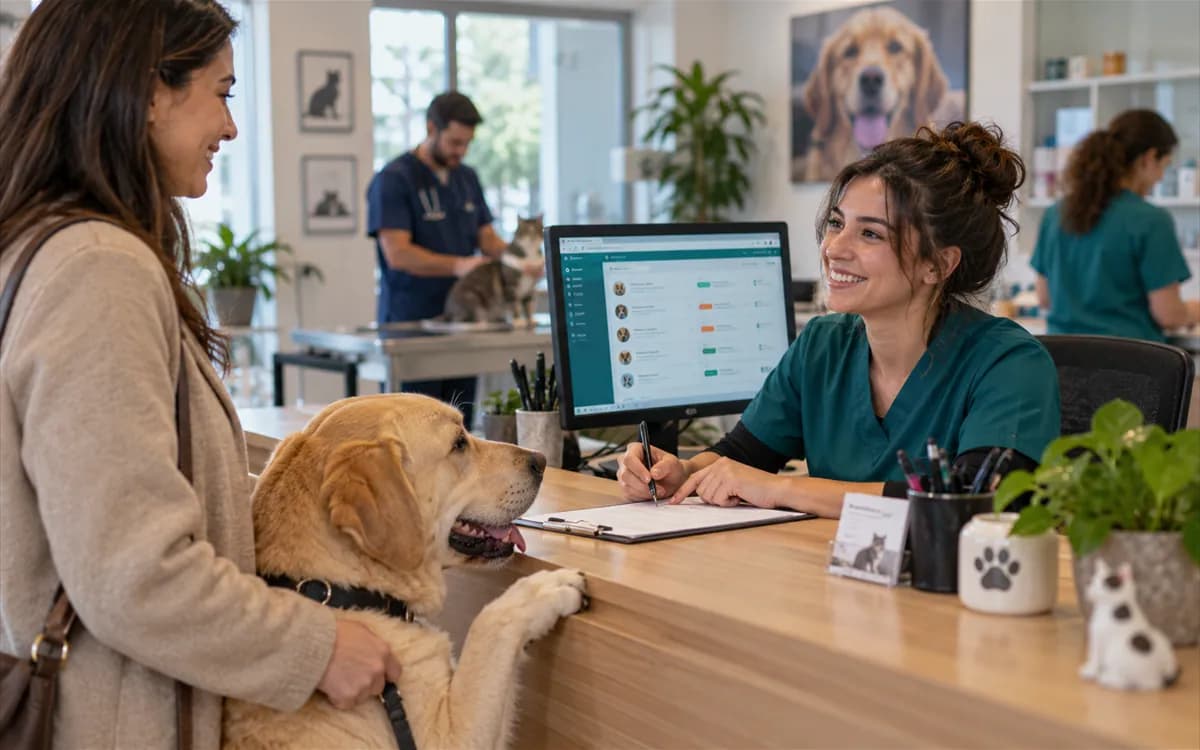
First day
The team opens appointments, enters exam records and takes payments in VetBis. You compare imported records with the old ones for a few patients and close the old system once you are sure.
Export checklist for the old system
A few preparations that make the import easier. Most take half an hour.
- Export the owner and patient list from the old program and keep a backup of the file in a separate place.
- If possible, clean duplicate or missing records in the file before the import.
- Decide which history (vaccines, stock, balances) you want moved.
- Write down open balances and pending appointments in the old program; you will check them by hand on switch day.
- Pick a quiet day for the switch.
We do not comment on your old program; we only focus on moving your data safely. If you want a comparison, test your own workflow in VetBis's 7-day trial.
You use the wizard from your own account. If your file needs special preparation, we discuss the scope, the time and any fee in writing before starting.
Related pages
Data import and export
The wizard's steps and export formats.
BetaVeterinary patient management
Where the imported patient and owner records live.
Veterinary clinic reports
VetBis reports in place of the old program's reports.
Trust center
How your data is protected and who owns it.
Veterinary software pricing
Plans, limits and the trial period.
Contact for migration support
Let's review your file together.
Frequently asked questions
The import wizard works with Excel and CSV files, so data can come from any program that can export. There is also a ready mapping profile for the export format of a common veterinary program. If you tell us which program you are leaving, we review your file in advance.
No. Your old program stays in place throughout the import. You test the import in the trial account first and move to the real account when you are sure of the result.
It depends on the size and cleanliness of your file, so we do not promise a fixed duration. After we see your file we share an estimated plan.
Owner and patient records are imported with the import wizard. Vaccination history, stock and other records depend on the content of your file; we clarify the scope together before the import.
The wizard validates rows before the import and shows the problem ones in the error table. You can fix them and upload again; faulty rows do not disappear silently.
Yes. You can export owner and patient records as CSV or XLSX. Your data belongs to you.
You use the wizard from your own account. If your file needs special preparation, we discuss the scope, the time and any fee in writing before starting.
See the switch in a trial account first
Import your owner list into a trial account and see the mapping and preview. If you do not like it nothing changes; your old program stays in place.