
Data migration and switching
Veterinary software data migration: upload the file, map, validate, import
Map customer, patient, product, vaccination history and opening balance columns from CSV or XLSX, then review invalid rows before importing. A source profile is available for Kolayvet; other sources use the generic template and column mapping. XLSX import is covered by automated tests.
Moving from your current program to VetBis: live flow
The journey of a sample customer list in four stages. Person names are fictional.
- File
- Mapping
- Validation
- Import
Importing 126 rows
Live flowImport and follow the history 4 / 4
Steps
- 1Upload the fileChoose the data type and upload a CSV or single-worksheet XLSX file.
- 2Map the columnsThe file's headers are matched to VetBis fields. Recognised headers match on their own.
- 3Preview and validateEvery row is checked before the import. Faulty rows appear in the error table with their reason.
- 4Import and follow the historyValidated rows are imported. An interrupted import resumes where it stopped.
Which data can be moved?
CSV and XLSX import source implementation covers five data types. Customer and patient lists export in both formats; XLSX import is covered by automated tests.
| Data type | What is moved | Where it opens in VetBis |
|---|---|---|
| Customers | Customer (owner) records | Customer and patient card |
| Patients | Patient (pet) records | Patient card |
| Products | Products kept in stock | Stock catalog |
| Vaccination history | Patients' earlier vaccination records | Vaccination tracking and patient card |
| Open balances | A customer's outstanding debt | Customer account and statement |
| Export | Customer and patient lists | CSV or XLSX file |

The fear that keeps clinics on software they do not like
Clinics often stay on the same program not because they like it but because they fear losing their data.
What happens to customer and patient records?
Years of owner and patient records cannot be retyped. Switching means moving them.
Lose the vaccine history and you lose the schedule
If old vaccine dates do not move, nobody knows which patient had which dose. Vaccination tracking starts from zero.
Customer balances get muddled
If open debts move to the new system wrongly, a dispute with the customer over payment follows.
Bad rows turn up later
If a broken record is noticed after a bulk import, cleaning it up takes longer than the import did.
How data migration works in VetBis
Every import is a job: previewed first, validated next, imported last.
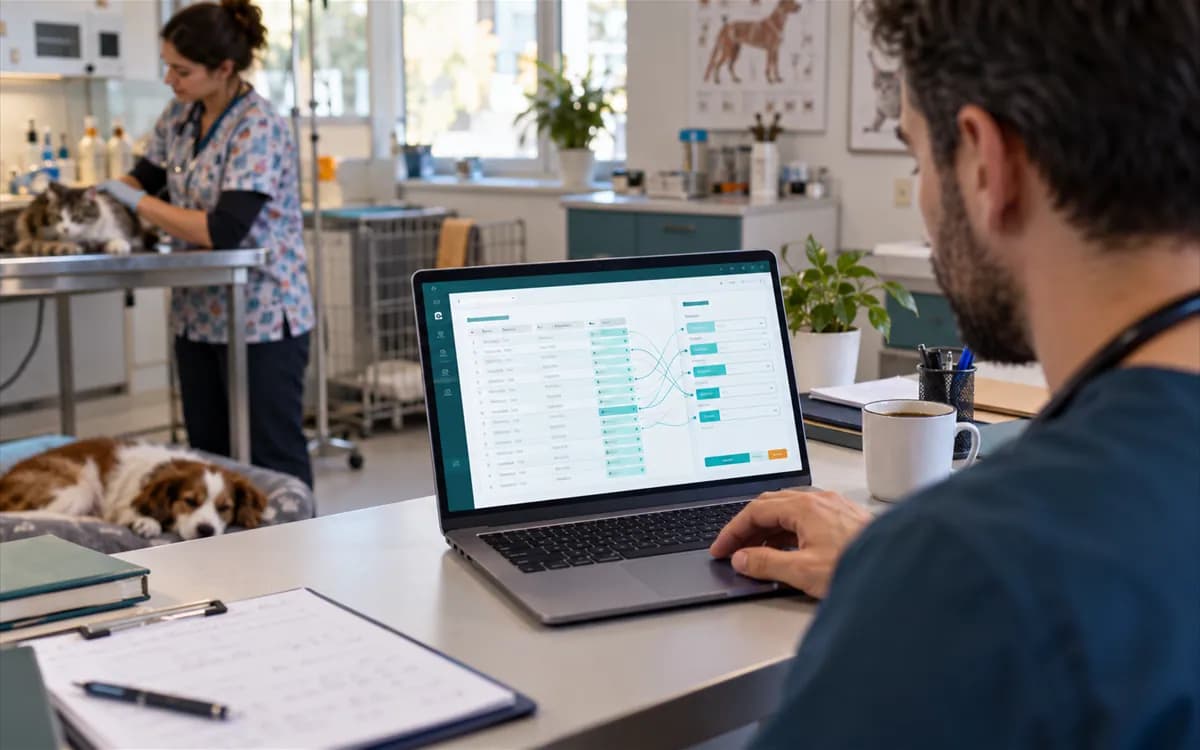
You pick the data type and the source
Choose customers, patients, products, vaccination history or open balances. For the source, choose the VetBis template or a profile for your current program.
Upload a CSV or XLSX file
Upload CSV or a single-worksheet XLSX file and map differing column headers. Formula cells and macro-enabled files are rejected.

You preview and validate
The system checks rows before importing. Faulty rows show in an error table with their row number and the reason.
You import and follow the history
Validated data is imported. Every import stays in the history list, and an interrupted job resumes where it stopped.
What the import wizard covers
Everything listed below works in the live product. For the file format, see scope and limits.
Five data types
Customers, patients, products, vaccination history and open balances can be imported, so the clinical record, stock and vaccine history arrive together.
Source profile
Import using the VetBis template or a file profile for a current veterinary program. The profile recognises its column names.
Column mapping
If the headers in your file differ, you choose which header feeds which field.
Preview and row validation
Each row is checked before importing. Missing required fields and invalid values are caught before anything is imported.
Error table
Faulty rows are listed with their row number and error reason. You can fix the file and upload it again.
Safe to repeat
If the same record comes in twice, it is not created again. Uploading the same file again does not create duplicate customers.
Import history and resume
Every import stays in the history. An interrupted import continues from where it stopped.
Customer and patient export
Customer and patient CSV or XLSX exports are prepared in the background and downloaded when ready.


What you gain from the move
No retyping of records
Customers, patients, products and vaccination history come from the file. Years of records do not have to be written again.
Errors show before the import
Validation and the error table catch a bad row before it is imported.
Open balances move too
Customer debt stays open in the new system as well, so there is no dispute over what was owed.
You keep your own data
Export customer and patient lists as CSV or XLSX.
Supported migration with the VetBis team
If you get stuck preparing your file, or the columns do not match the template, you can plan the migration with us. The whole switching process is described on the Switching page.
Features that work alongside it
Patient tracking software
Imported customer and patient records open there.
Vaccination tracking software
Imported vaccination history becomes the starting point for vaccine tracking.
Inventory management
Imported products go into the stock catalogue.
Cash desk and collections
Open balances show on the customer account and statement.
API and webhook integration
If you need a regular data feed, look at the API option.
Frequently asked questions
Customers, patients, products, vaccination history and open balances. Exam notes, images and document attachments are not imported with this wizard.
Direct XLSX upload is implemented; import is covered by automated tests. Use one worksheet without formulas or macros. CSV is also supported.
No. In the column mapping step you match your file's headers to VetBis fields. For files from a current veterinary program you can pick a source profile.
The validation step shows faulty rows with their row number and reason before importing. You fix the file and upload it again; the job's status shows in the history list.
No. The import is safe to repeat; the same record is not created a second time.
Customer and patient CSV or XLSX exports are prepared in the background. The XLSX flow is covered by automated tests.
Start the switch with your file
Upload your customer list and see how it looks in the preview. Where you get stuck, we will work through it together.