Appointments and waiting room
Veterinary appointment software: slots, equipment and waiting room
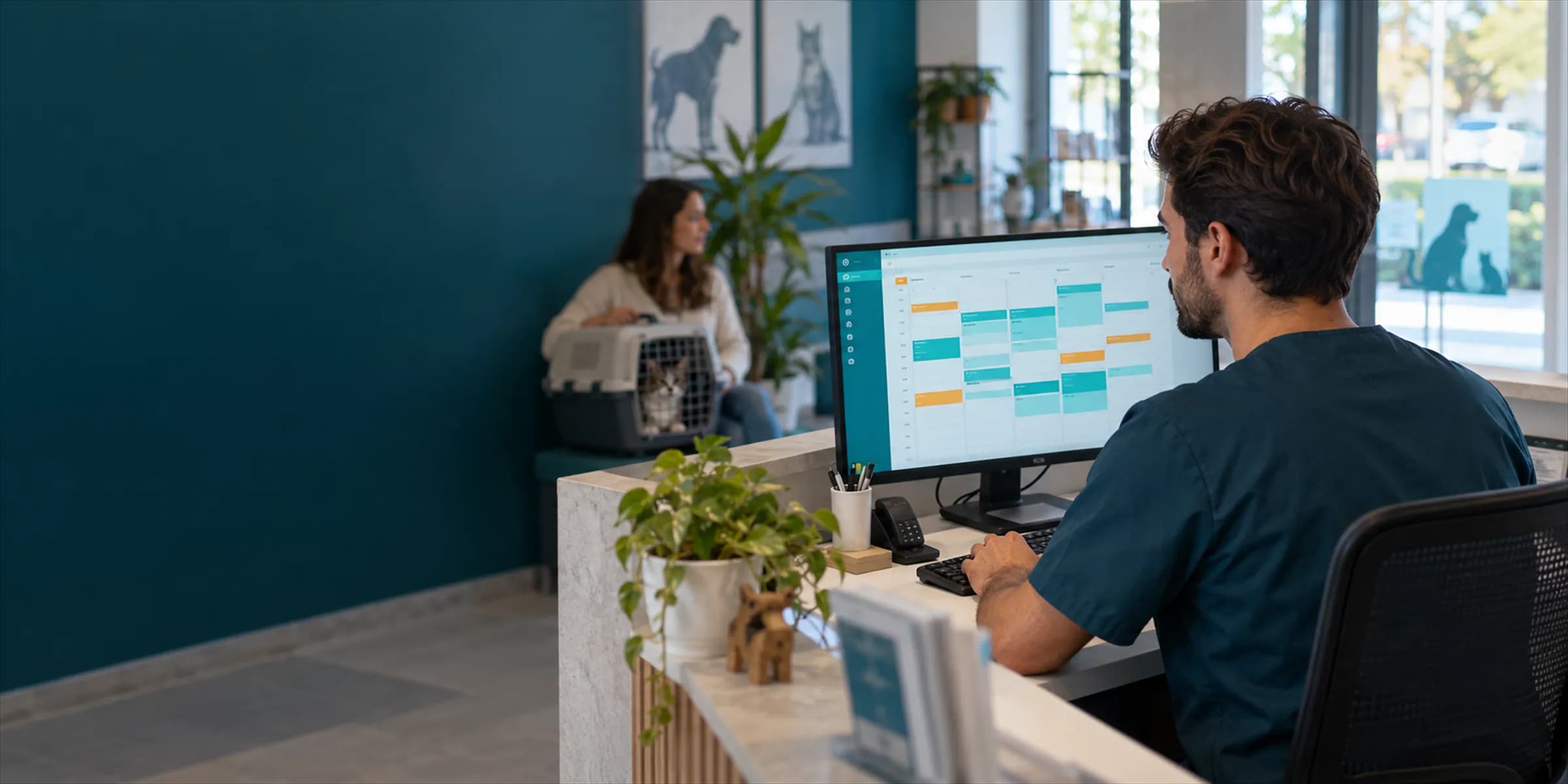
VetBis veterinary appointment software builds the schedule from your working hours and slot length. It marks a double booking of the same equipment in red, takes arrivals onto the waiting board with check-in and moves them to the exam. Today your clinic team creates appointments from the web and mobile apps.
| Mon | Tue | Wed | Thu | Fri | |
|---|---|---|---|---|---|
| 09:00 | Open09:00–09:30 Open09:30–10:00 | Open09:00–09:30 Luna · Check-up09:30–10:00 | Open09:00–09:30 Open09:30–10:00 | Open09:00–09:30 Pamuk · Vaccine09:30–10:00 | Open09:00–09:30 |
| 09:30 | |||||
| 10:00 | Max · In exam10:00–10:30 | Open10:00–10:30 | Mia · Exam10:00–10:30 | Open10:00–10:30 | Open10:30–11:00 |
| 10:30 | |||||
| 11:00 | Open11:00–11:30 | X-ray · Boncuk11:00–11:30 X-ray · Zeytin11:00–11:30 | Open11:00–11:30 | ||
| 11:30 |
- Open slot
- Appointment
- Checked in
- In exam
- Equipment conflict
Live flowIn exam 5 / 5
Steps
- 1Slots appearWorking hours and slot length are entered and the calendar fills with open 30-minute slots.
- 2Appointments landAn appointment type is picked and the slot fills. Type, duration and colour are set up by your clinic.
- 3Conflict is flaggedWhen a second booking is entered for the same equipment, it shows in red on the calendar.
- 4Check-inWhen the patient arrives, check-in is recorded and the card drops into the Waiting column of the board.
- 5In examWhen the vet starts the exam, the card moves to the In exam column.
Waiting room
From check-in to exam on the waiting room board
When a patient arrives, reception checks them in and the card drops into the Waiting column. When the vet starts the exam, the card moves to In exam, so who is waiting is clear at a glance.

Booked
Mia · Exam
Wed 10:00
Pamuk · Vaccine
Thu 09:30
Waiting
In exam
Max · Combo vaccine
Mon 10:00
- Booked
- Waiting
- In exam
Equipment booking and the appointment lifecycle
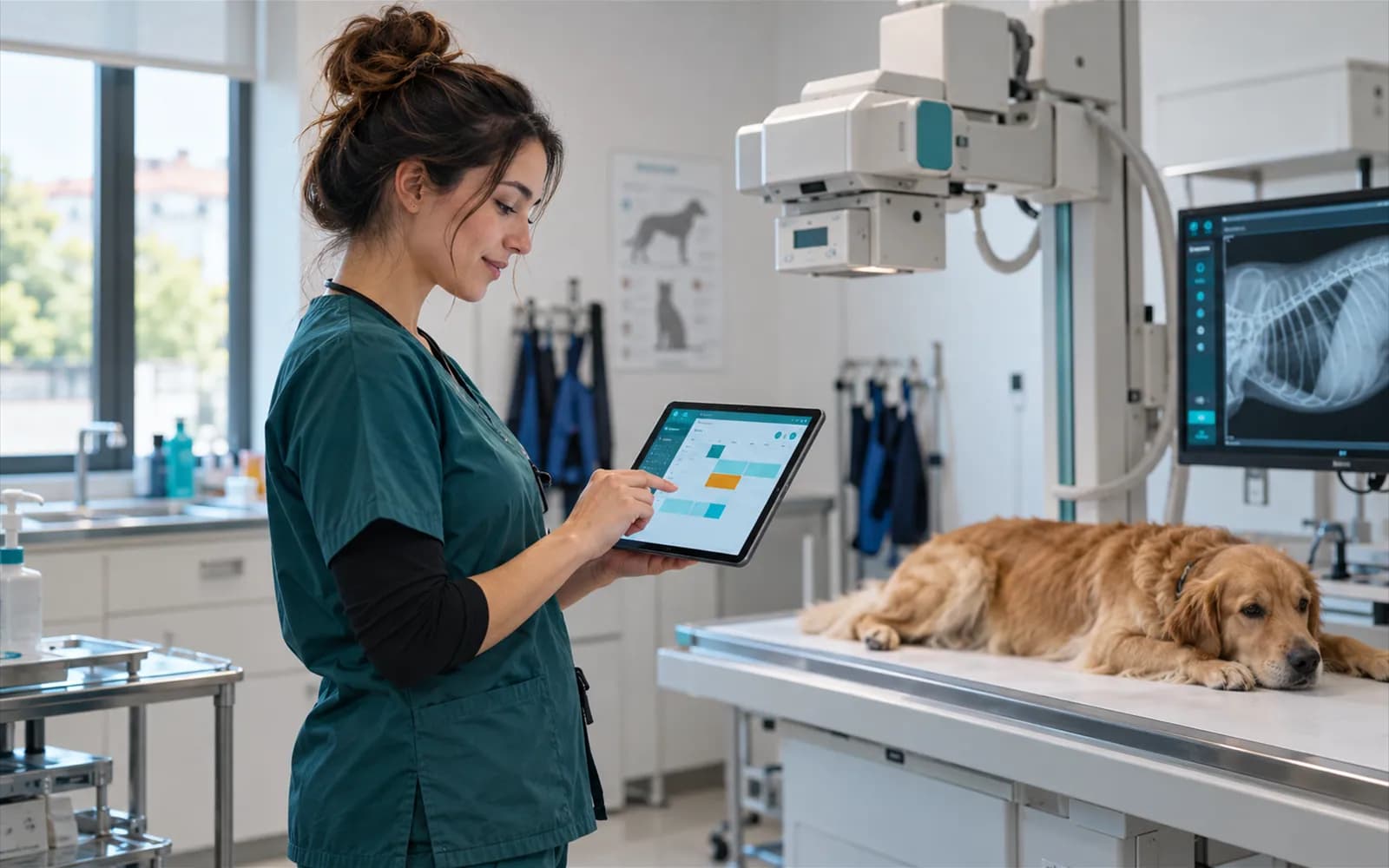
Shared equipment such as the X-ray is booked against appointments. Every appointment is in one of eight statuses: a five-step main line and three side statuses.
Appointment statuses
- PendingCancelled
- ConfirmedNo-showRescheduled
- Checked in
- In progress
- Completed
Steps
- 1Pending
- 2Confirmed
- 3Checked in
- 4In progress
- 5Completed
Equipment booking
Equipment is defined and booked for an appointment. A double booking of the same equipment shows in red on the calendar.
Waiting list
A patient who wants a full day goes on the waiting list. The automatic notification when a slot opens goes out when the message route the clinic chose (its own account or the VetBis package) is connected; not verified with a real account.
Not verified with a real accountNo-show and rescheduling
A patient who does not come is marked No-show. When the appointment moves to another day its status becomes Rescheduled.
Appointment types, closed days and service lines
The rules of the calendar are set by your clinic: how long things take, what colour they show in and which days are closed.

Appointment types
You define types such as exam, vaccine or check-up with a duration and colour, so they stand apart on the calendar.
Working hours, holidays and closed days
Working hours, slot length and holidays are set; the open slots are calculated from them.
Service lines and invoice
Service lines are added to the appointment and carried on to the exam and invoice stage.
What else the calendar does
Day, month and list views
Appointments are followed by day, month or list; agenda blocks hold time on the calendar.
Exam from the appointment
An exam is started from the appointment card and the patient details carry over.
Peak hours report
The reporting area has a report that shows the busiest appointment hours.
Shifts and leave
Staff shifts and leave are planned in staff management.
Mobile clinic app
You can manage appointments from your phone too. The app is in beta.
Beta
Online booking
Portal request, clinic approval
An appointment request from the pet owner portal lands on an approve or reject screen at the clinic. The approval screen on the clinic side works; the owner-facing portal screen for sending requests is in the web app too (beta). The clinic team can also create appointments directly.
- Portal requestFrom the owner portal (beta)
- Clinic approvalApprove and reject screen works
- Appointment created
- ReminderSending waits for a provider
Appointment reminder messages go out when the route the clinic chose (its own account or the VetBis package) is connected; if it is not, nothing is sent.
Features used alongside appointments
Frequently asked questions
Partly, as a beta. The pet owner sends an appointment request from the portal; it lands on the clinic approve and reject screen, and the appointment is only created once the clinic approves. The owner does not book a firm appointment alone. The clinic team can also create appointments directly from the web and mobile apps.
Not automatically. Reminders and waiting list notifications go out when the message route the clinic chose (its own Netgsm/SMTP account or the VetBis package) is connected, and have not been verified with a real account. If the route is not connected nothing is sent; today your team sends the day-of reminder itself.
Queue numbers are available: reception check-in adds the patient to the waiting board, where staff select a doctor to call the patient. QR code check-in is not available yet.
The conflicting booking is marked in red on the calendar. This keeps bookings of shared equipment such as the X-ray visible.
A patient who does not come is marked No-show. An appointment moved to another day becomes Rescheduled; cancellations are a separate status.
Set up your appointment calendar this week
Enter your working hours and appointment types and watch your first slots appear on the calendar.