
Security
Veterinary software with roles, permissions and an audit log
In VetBis each user sees only the screens and buttons their role allows. The manager grants permissions per role, defines per-user exceptions and opens or closes branch access. Critical actions land in the audit log. This page describes the controls inside the product; company policy and documents are in the Trust Center, the team side is in staff management and the branch side is on the multi-branch page.
Effect
Sample role scheme. Roles and permissions are defined in your clinic.
Switch a permission off and watch what follows
When a role's permission is switched off, the matching button leaves the user's screen, the change is written to the audit log, and the user works only with their own branch's records. The flow uses sample data.
Effect
- Invoice voiding was switched off for the front-desk role.
Front-desk user's invoice screen
- New invoice
Audit log
- 14:32Sensitive fields masked
Role permission changed
Front desk: invoice voiding switched off. By: manager.
Branch scope
North branch
The user sees only the records of the branch they have access to.Users with access
4
Sample data
- Patient recordsThis branch only
Live flowBranch scope 5 / 5
Steps
- 1Permission onThe front-desk user can void invoices.
- 2Permission switched offThe manager turns off the matching box in the matrix.
- 3Button disappearsThe void-invoice button vanishes from the user's screen.
- 4Audit row landsThe change is written to the log with sensitive fields masked.
- 5Branch scopeWhen the branch changes, records appear limited to that branch.
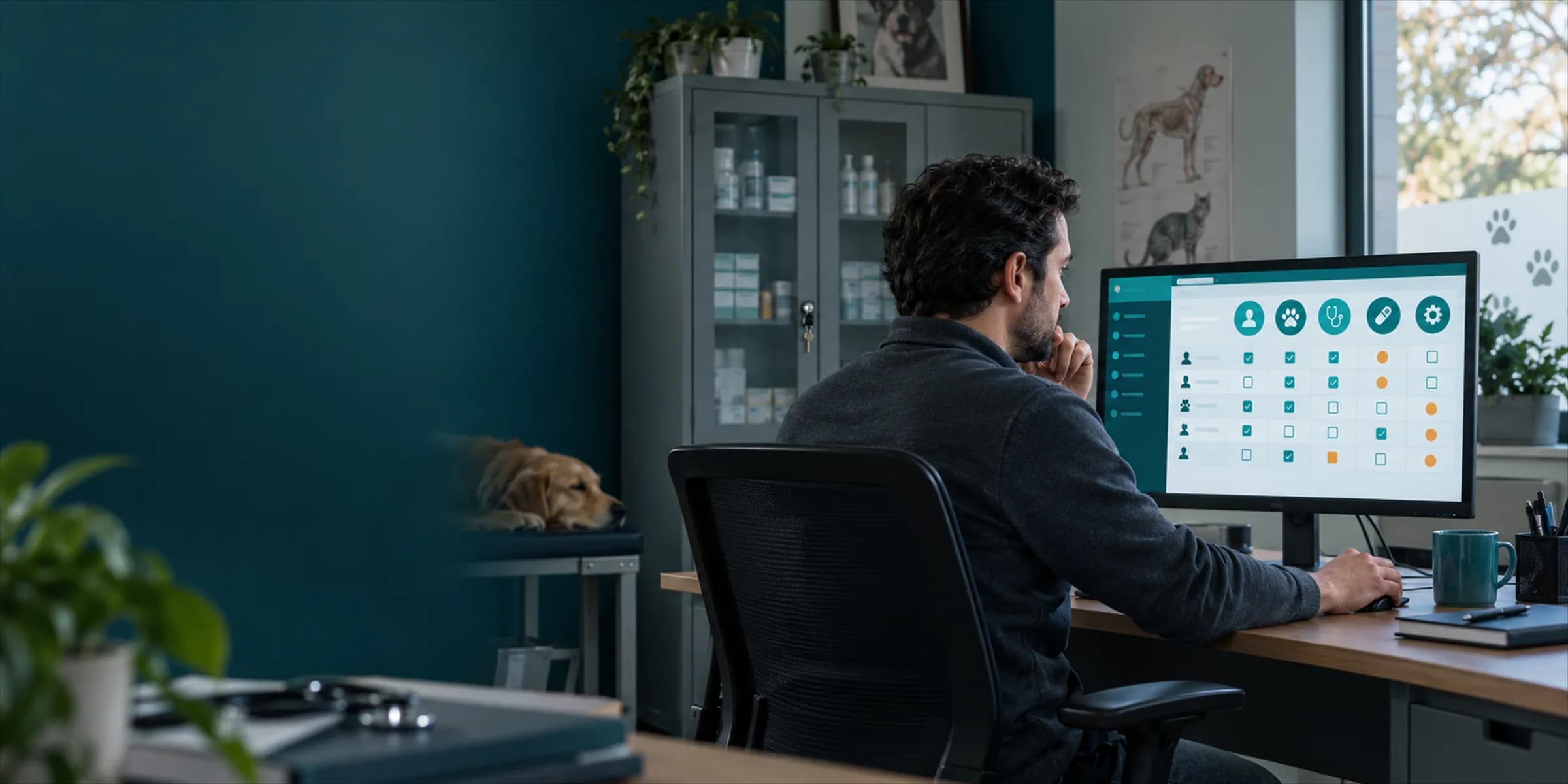

Roles, permissions and session controls
Permissions go down from screens to individual actions. Who sees what and who does what is managed to fit how your clinic runs.
Role-based permissions
For each role you decide which screens and actions are open. A new team member takes the role and arrives with its permissions ready.
Per-user permissions
When needed you add a permission beyond a user's role or remove one. The user's effective permissions are listed.
Session limits
A session that has expired or lost its permission is sent to sign-out. The session is renewed regularly while you work.
Security settings
From the security settings screen you manage account security and the password policy.
Audit log: who did what, and when
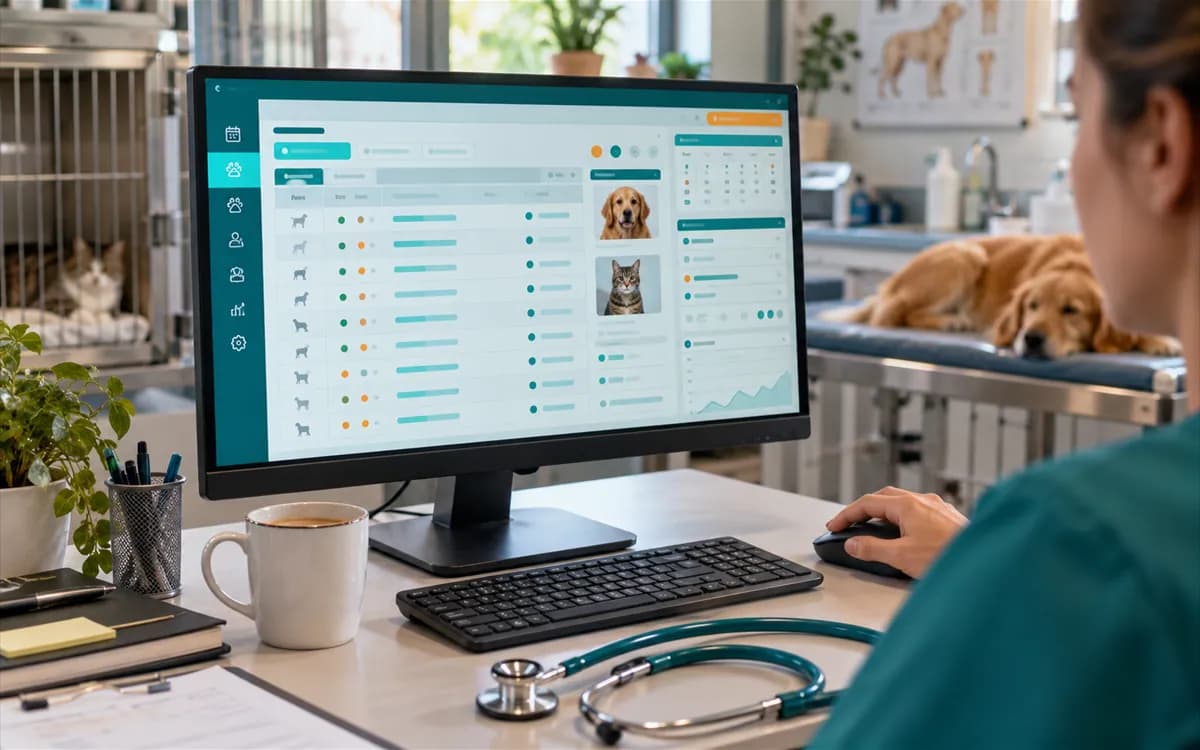
Critical actions are written to the audit log. On the activity log screen in Settings you filter the records to find the event you need. Sensitive fields are masked in the record, so the log does not carry personal data in the open.
- Filtering
- Narrow the records down to a single event or user.
- Masking
- Sensitive field values are hidden in the record; you see what changed, but not the value itself.
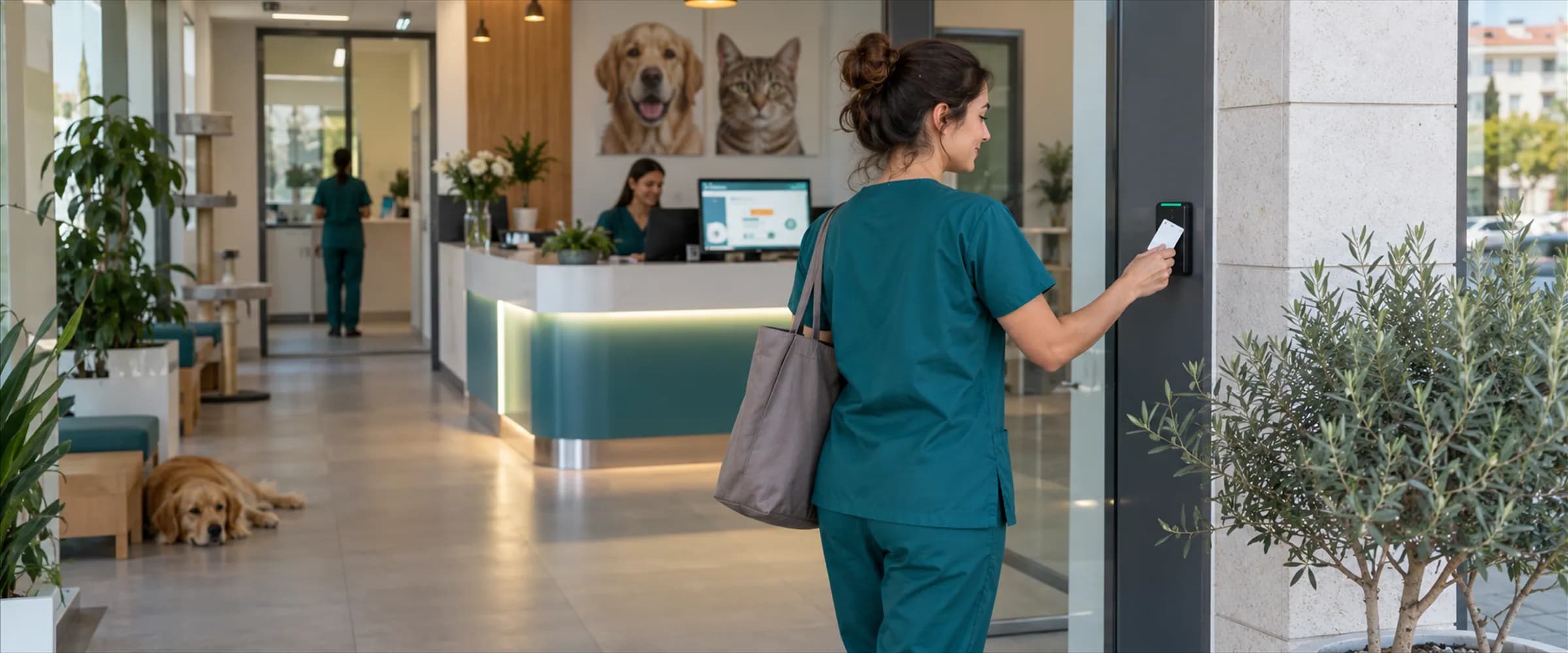
Branch access: each user stays in their own branch
Access is granted or removed per branch for each user. Every branch works in its own data space, and one clinic's user cannot reach another clinic's records. Company policy and documents are in the Trust Center.
Frequently asked questions about security
The clinic manager decides. Open screens and actions are defined for each role, and a user sees only the buttons and records their role allows.
Yes. You can add a per-user permission or remove one. The user's effective permissions are listed on screen.
No. Data is separated by company and branch scope. A user works only with the records of the branches they have been given access to, and cannot reach another clinic's records.
On the activity log screen in Settings. Critical actions are listed there, you can filter the records, and sensitive fields appear masked.
This page describes the access controls inside the product. Company-level security policy, documents and the data-protection approach are in the Trust Center. No unverified certificate or encryption claim is made on this page.
Set up permissions to fit how your clinic runs
Try free for 7 days. See roles, branch access and the audit log with your own team.