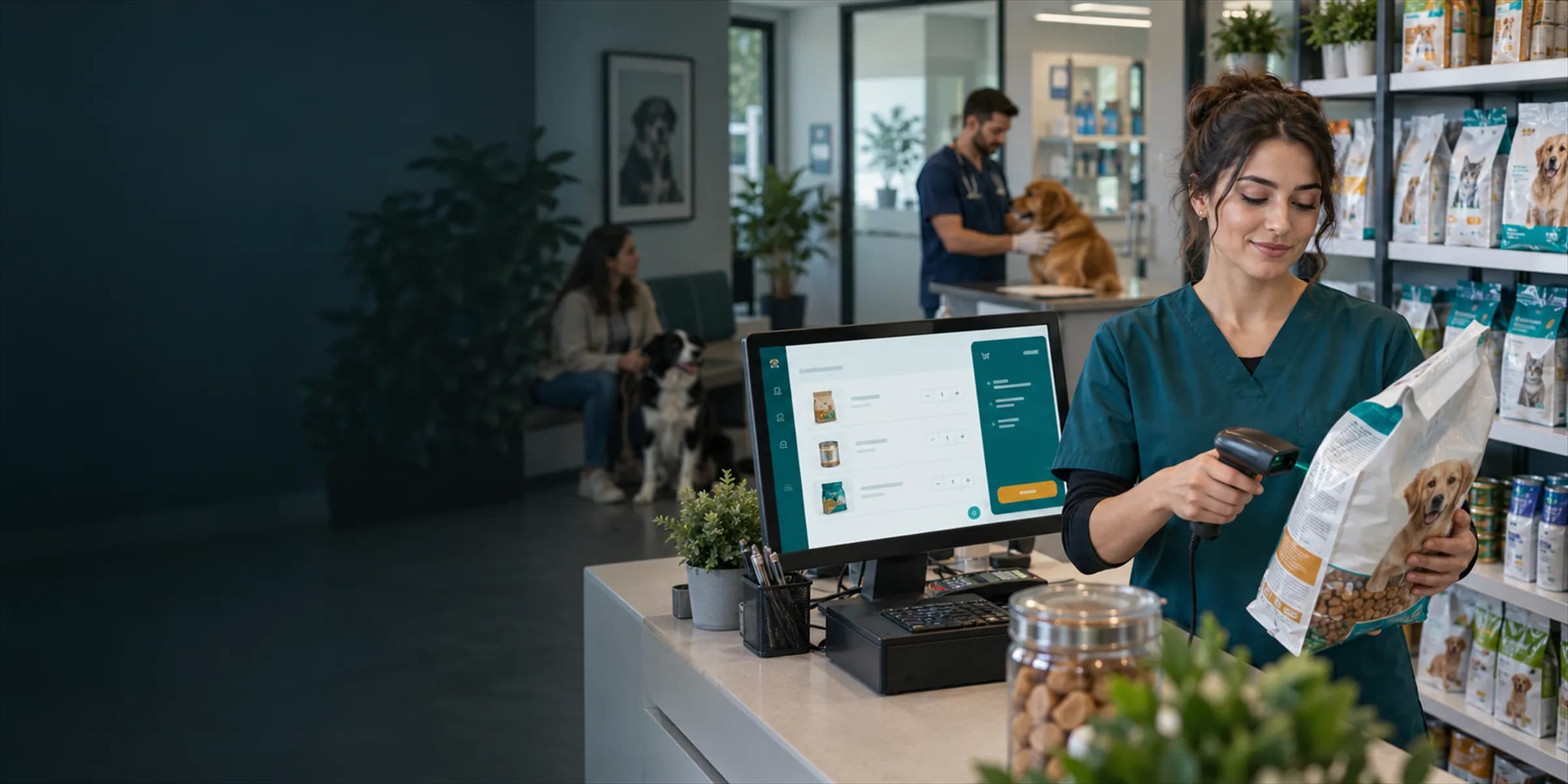
Barcode quick sale
Barcode quick sale: sale, invoice, cash and stock in one transaction
VetBis barcode sales screen reduces the sale of food, accessories and supplies to a single transaction. Staff scan the barcode, see the basket and take payment; the sale takes its price from the price list, leaves stock, is written to the open cash session and creates an invoice record.
Cash
- Sale record
- Invoice record
- Cash movement
- Stock deduction
| Adult dog food 3 kg | TRY 780.00 |
|---|---|
| Cat treats × 2 | TRY 180.00 |
| Follow-up examination (service) | TRY 450.00 |
| Total | TRY 1,410.00 |
Live flowReceipt and effects 5 / 5
Steps
- 1Scan barcode
- 2Second product
- 3Service item
- 4Payment
- 5Receipt and effects
Even if the same sale is sent twice, only one record is created
Fixed pricing
The line price comes from the price list and cannot be changed on screen. The shelf label and the till price do not drift apart.
Stock, cash and invoice in one step
Confirming a sale deducts stock, writes the collection to the open cash session and creates the invoice record. If the till is closed, the screen says so.
Duplicate-sale protection
If the same sale is sent twice because of a double click or a dropped connection, a second sale is not created.
First request
- Sale · key A1SavedRecord created
Same request again
- Sale A1 (duplicate)SavedNo new sale created
Stock, cash and invoice are affected once; no second sale is created.
Live flowOne record 4 / 4
Steps
- 1Request sentThe sale is confirmed and sent to VetBis.
- 2Connection dropsNo reply arrives, so the same request is sent a second time.
- 3VetBis recognises itThis sale was already recorded, so it is not recorded again.
- 4One recordStock, cash and invoice are affected once; no second sale is created.
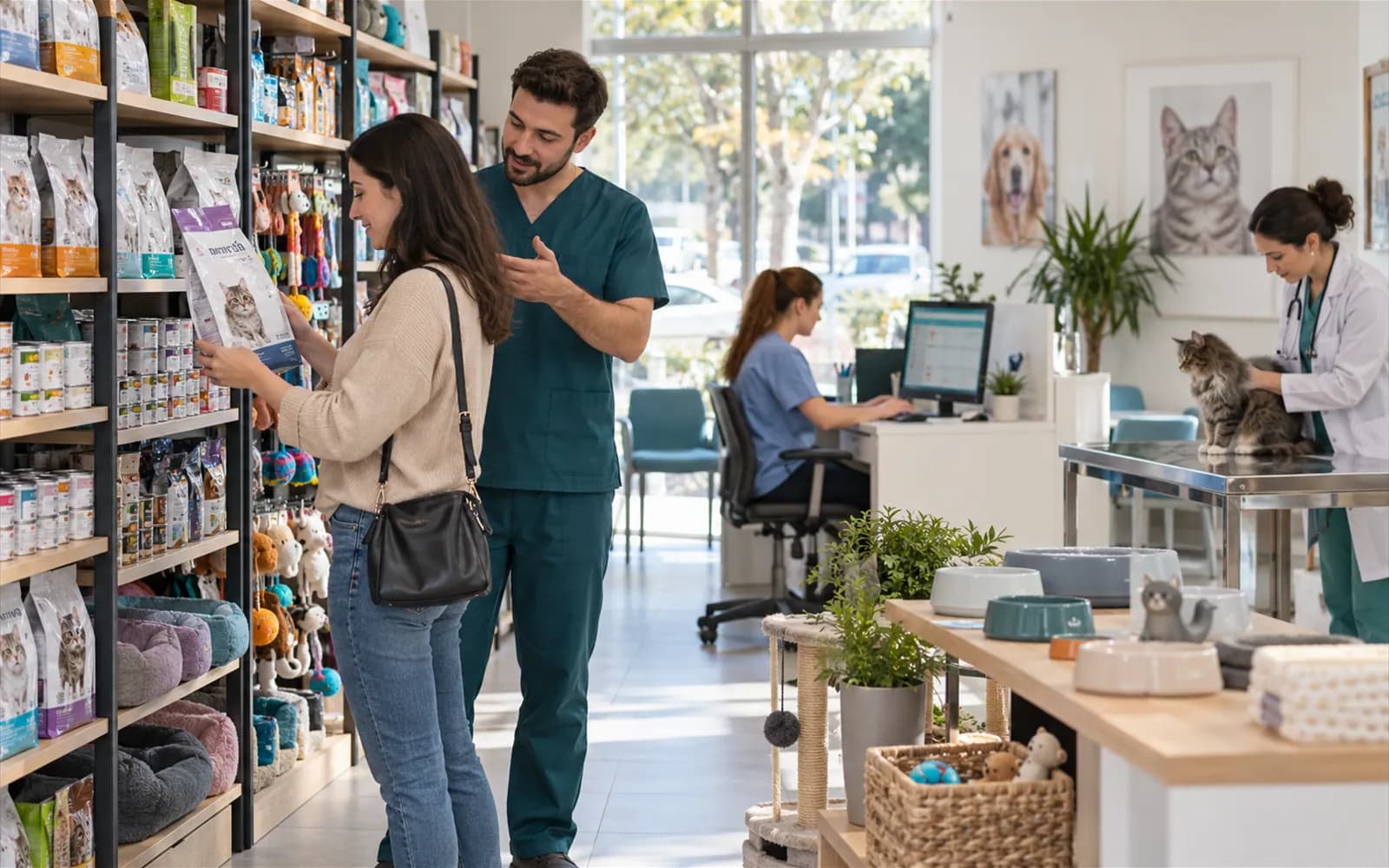
Find the product by barcode, the service from the catalogue
Product lookup by barcode
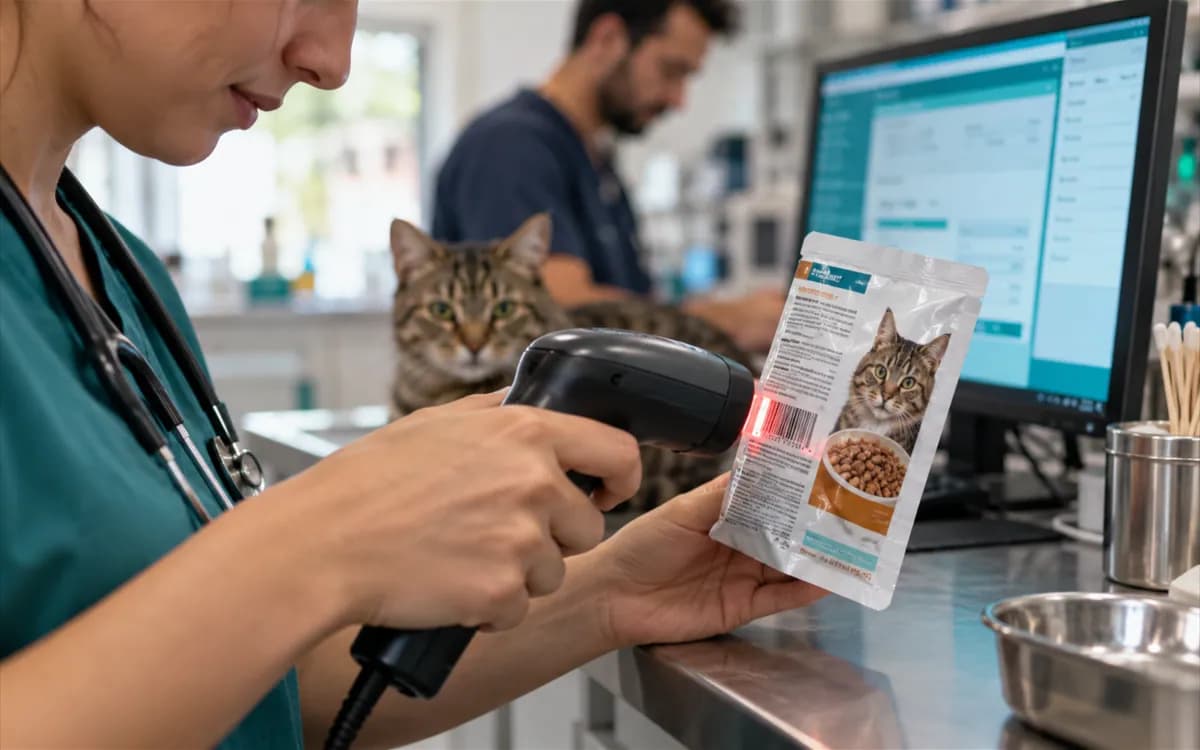
Scanning a barcode finds the product and adds it to the basket. Stock scanning uses the same barcode records.
Sales from the service catalogue
Items without a barcode, such as nail trimming or a follow-up exam, are added to the basket from the service catalogue.
Insufficient stock warning
A product with no stock cannot be sold. The screen tells you which line could not be added and why.
Basket, customer, discount and sales history
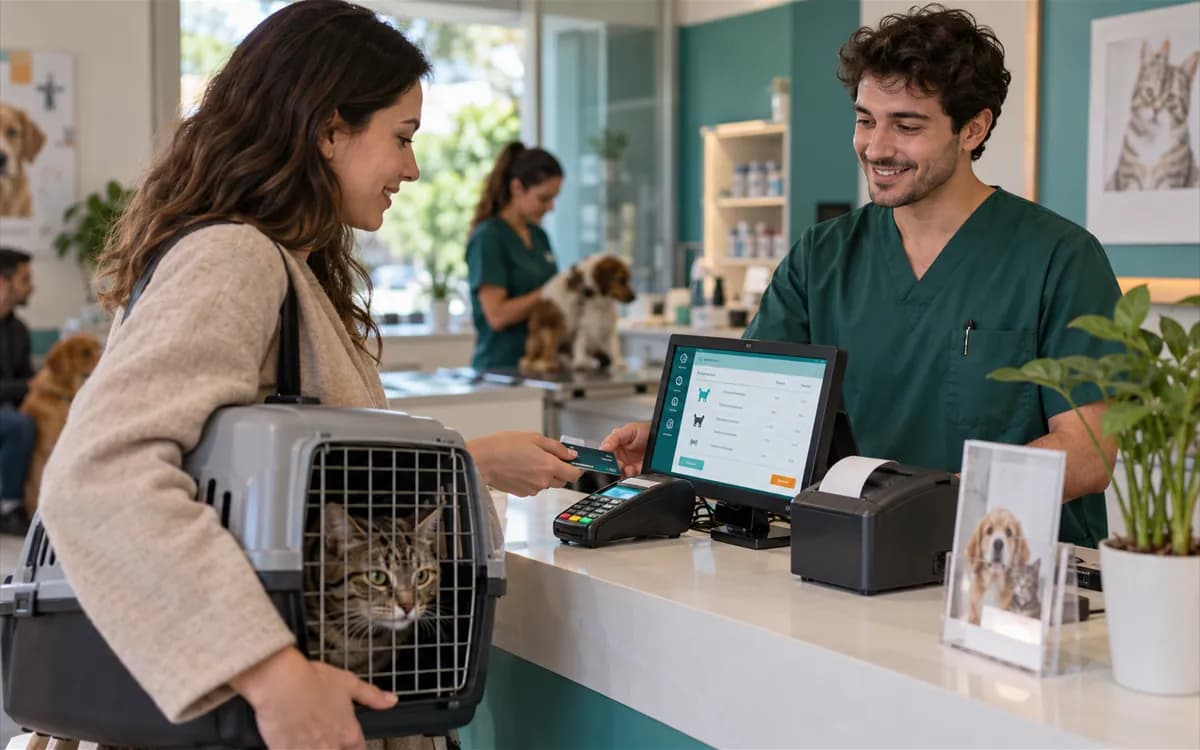
The customer confirms the basket and pays; payment is written to the open cash session.
Customer, discount and on-account sales
Select the owner and patient or continue with a walk-in customer. Apply a discount or put the sale on account with a due date.
Sales history, cancellation and reminders
Open past sales, view the details and cancel a sale when needed. A repeat sale reminder can be set for products bought regularly.
Price lists
Price list screens are usable; today a sale uses the price on the product card.
Automatic application to sales is in developmentFiscal receipt
The receipt screen is ready; until a fiscal provider and device are connected you keep using your current cash register.
Provider pending
Scope and limits
The document status after a sale is covered on the e-invoice and fiscal receipt page, the daily flow of payments on the cash desk page.
Features that work alongside it
Inventory management
Sold products leave stock there; barcode and lot records are kept there.
Cash desk and collections
Sale collections are written to the open cash session.
Billing and pre-accounting
The invoice record created at the end of a sale is followed there.
Purchasing and warehouses
Stock of sold products is replenished through purchase receipts.
e-Invoice and fiscal receipt
Official document and receipt status are described there.
Integration in preparation
Frequently asked questions
Standard handheld scanners that behave like a keyboard. The scanner types the barcode into the search field on screen and the product is added to the basket.
Yes. When the sale is confirmed, the products leave stock, the collection is written to the cash session and an invoice record is created. A product with no stock cannot be sold.
A sale is written to the open cash session, so the screen tells you if the till is closed. You need to open the cash session first.
Not yet. The receipt screen is ready, and a receipt can be issued once a fiscal printer provider and device are connected. Until then you keep using your existing fiscal device.
Yes. Open the sale from the sales history and cancel it.
No. You can pick a registered owner and patient or continue with a walk-in customer. For sales put on account, you must select a customer.
Cut pet food sales down to one step
Bring over your product list and barcodes, and we will run the first sale at your counter together.