
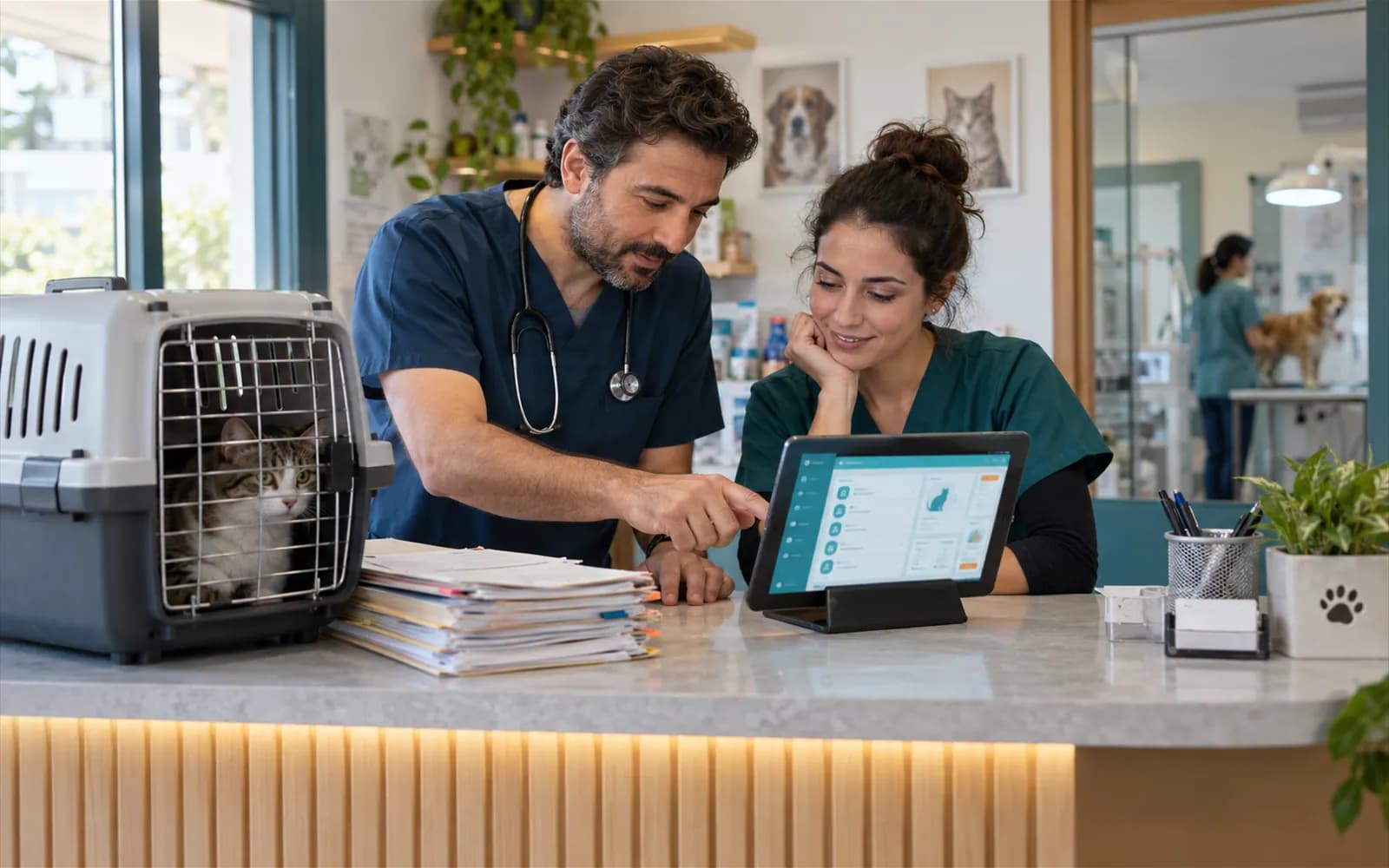
A clinic that runs on paper books and spreadsheets should map its own workflow before it moves to software. VetBis is veterinary practice management software that keeps the patient record, appointments, vaccinations, stock, till and invoices in one place. But switching is more than installing a program: data has to move, the team has to adapt and the old routine has to stop. This guide covers the order of work, what to do at each step and where clinics usually get stuck. Choosing the software is a separate decision; for that, see the software selection checklist.
What changes when you leave paper
Paper and spreadsheet records create three problems:
- Reaching a patient's history takes minutes; the record cannot be found during the exam.
- Vaccination, appointment and stock information sit in different places and cannot be compared.
- At the end of the day the till and invoices are reconciled by hand, and when they differ the source is hard to find.
Software does not fix these by itself. It fixes them if the team enters records the same day. The real subject of digitalisation is therefore record-keeping habit, not technology.
A migration roadmap: a six-week example
The timetable below is an example; it will stretch or shrink with clinic size and preparation.
| Week | Focus | Output |
|---|---|---|
| 0 | Document the current workflow, data inventory | Workflow and data list |
| 1 | Setup, users and roles, trial import | A working test environment |
| 2 | Go live with patient and appointment records | A daily record-keeping routine |
| 3 | Clinical procedures and vaccination tracking | Exam and vaccine records in the software |
| 4 | Stock and till | End-of-day closing in the software |
| 5-6 | End of the parallel period, report check | Old routine closed |
Step 1: Write down how you work today
Before you start, answer these questions:
- How many exams and appointments a day?
- Where do you keep vaccination and recheck dates?
- Who counts the stock, and how?
- Who closes the till and the invoices?
- How many branches and how many users?
- Which reports and lists do you produce regularly?
The answers show which modules to start with. For most clinics the order is: patient management, appointments, clinical procedures and vaccination tracking, then stock, till and billing.
Step 2: Clarify what depends on outside systems
Clinic software does not perform every official process on its own. Before switching, ask in writing: what is the status of connections to external providers, such as e-invoice sending or SMS and WhatsApp delivery? In VetBis these connections are in preparation, and each feature's readiness is labelled on the features page. The Ministry of Agriculture and Forestry's VETBİS system and the VetBis software are different things; VetBis does not notify the ministry system automatically. Mandatory notifications continue through the official channel as before. For detail, see the e-invoice article.
Step 3: Move the data
- Export your owner, patient, vaccination and stock lists as CSV or Excel.
- Clean up duplicates and missing phone numbers.
- Run a small trial import of 20-30 records first.
- Check the column mapping and the error table, then import everything.
- Keep the old records read-only for a while.
VetBis offers an import wizard with column mapping, row validation and an error table; details are on the migration page and in the data migration steps article.
Quick rules for data cleaning
- Put phone numbers in one format (with or without the leading zero, but identical everywhere).
- Merge multiple rows for the same owner.
- Turn free-text species, breed and sex entries into fixed values.
- Keep vaccination dates in a single date format.
- List the empty mandatory fields and prioritise them; do not try to fix everything at once.
Step 4: Train the team by role
Start with appointments and patient records. Stock and billing follow in later weeks. Vets, reception and the till should learn only their own screens. Define roles and permissions at the start; why that matters for personal data is covered in the KVKK guide.
| Role | Learn first | Then |
|---|---|---|
| Reception | Owner and patient record, appointments | Till, collections |
| Vet | Exam record, vaccination plan | Prescriptions, reports |
| Till/manager | Opening and closing the till | Stock, reports, permissions |
In training, give each role a real daily scenario: "record this morning's first patient from start to finish." Repeating the workflow teaches more durably than touring the screens one by one.
Step 5: End the parallel period
Running both systems together is natural in the first weeks, but if it goes on indefinitely the team never trusts the software. Set an end date; after it, new records go into the software only. Before the end date, doing one end-of-day close both ways and comparing the results builds confidence.
Common mistakes
- Trying to switch everything on the same day.
- Importing uncleaned data as it is.
- Training only one person; when they go on leave, the routine stops.
- Never ending the parallel period.
- Not getting the status of outside connections from the vendor in writing.
Migration checklist
- Current workflow written down
- Starting modules chosen
- Status of external integrations obtained from the vendor in writing
- Trial import done
- Roles and permissions defined
- Training calendar prepared
- End date set for the old routine
- Old records archived read-only
- Current workflow written down
- External systems clarified
- Data migrated
- Team trained by role
- Parallel period closedPaper book retired; new entries only in the software.
Live flowParallel period closed 5 / 5
Steps
- 1Current workflow written downDaily exam, appointment and cash flow mapped.
- 2External systems clarifiedAccounting and lab connections listed.
- 3Data migratedPatient, owner and product records imported and spot-checked.
- 4Team trained by roleEach role learned only its own screens.
- 5Parallel period closedPaper book retired; new entries only in the software.
Sample checklist; adapt it to your clinic.
Frequently asked questions
How long does the switch take? It depends on clinic size and how clean the data is; if you switch modules on in sequence, it settles within a few weeks.
Can I import my Excel records? CSV or Excel files can be imported through column mapping and validation steps; do a small trial first.
Does the clinic have to close during the switch? No. You can keep working in a parallel period and close the old routine on a set date.
Are ministry VETBİS notifications made from the software? No. VetBis does not notify the ministry system automatically; official notifications continue through the relevant channel.
Conclusion
Digitalisation does not finish overnight, but done in order it settles in a month or two. To try VetBis with your own data, start from the migration page.